h3mm3's blog

Stories from behind the keyboard

  • RSS
  • Twitter
Showing posts with label Utility. Show all posts

One straightforward way to localize a Windows Phone 7 application you are writing is the following:

  • Create and edit a .resx file (for instance LocalizedStrings.resx).
  • Build your project, so that Visual Studio (well, the PublicResXFileCodeGenerator tool) generates the .Designer.cs file. This way your assembly is having a nice LocalizedStrings static class that you can use in your XAML.
  • Register the static class as an application resource, in your App.xaml:
<Application ... 
 xmlns:my="clr-namespace:{your default namespace}">
<!-- .... -->

<Application.Resources>
  <!-- .... -->
  <my:LocalizedStrings x:Key="Loc"/>
</Application.Resources>
  • Feel free to bind to any localized string in your XAML using the built-in Managed Resource Editor. For instance, if you have a string resource called MyLocalizedString, image you can write somewhere in your XAML’s:
<!-- .... -->

<TextBox Text="{Binding MyLocalizedString, Source={StaticResource Loc}}" ../>

<!-- .... -->

At this point you build and run your project….

image

...and sudden notice that your program gives a creepy "AG_E_PARSER_UNKNOWN_TYPE" error. (“WTF!?”): image

This error says that the runtime parser doesn't know a type, but stays absolutely silent about the type’s name! The unknown type is just the LocalizedStrings class and it is unknown to the parser because the PublicResXFileCodeGenerator tool made its constructor internal.

image

Editing by-hand the code behind is pointless, since every time you edit or add a resource in the Managed Resource Designer, the PublicResXFileCodeGenerator tool rebuilds the LocalizedStrings.Designer.cs and (re-)sets the constructor to “internal”.

At this point you can take one of the following steps:

  • Commit to Android development
  • Change your mind about binding to resources
  • Use an IL weaving technique and make the constructor’s access modifier public
  • Follow KISS and YAGNI principles (kind of..) and just replace “internal” with “public” before building your project.

The latter is the path I followed, after a little struggle with NuGet (I couldn’t find any proper NuGet Fody add-on, precisely).

To put it shortly, I wrote a tiny REPLACE.EXE console utility. It takes 3 input parameters: a full filename, a text to find and a text to replace. Then I set the following pre-build action for my WP7 application project - $(ProjectDir) is a Visual Studio macro; you can find it and more on  MSDN’s “Pre-build Event/Post-build Event Command Line Dialog Box” page).

image

image

This way, anytime I build my project, REPLACE.EXE resets the LocalizedStrings contructor to public.

All’s well what ends well; happy programming!

P.S: Here’s the RESET.EXE’s Main()…

image

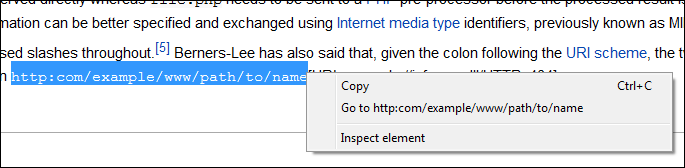
One of the feature I miss most when I use Internet Explorer in comparison of Google Chrome, is the contextual menu command “Go to <url>” that appears when you select a text that resembles an URL and then right-click the selection (see picture).

image

In Italy we have a saying:

«He who works by himself does the work of three (people)» (Chi fa da sé, fa per tre)

that’s to say: if Microsoft hasn’t implemented such a feature yet, you’ll do better implement it on your own (or change your browser!). Since I really like Internet Explorer 9, I chose the former. 

In order to achieve this result, I configured Internet Explorer to open an HTML file and I wrote Javascript code inside that file, so that IE will open a new window using the selected text as an URL address. In the following picture you can see how my IE9 reacts when I right-click on a selected text.

image

The good old RegEdit

In order to customize Internet Explorer’s context menu, I added a key in the Registry to HKCU\Software\Microsoft\Internet Explorer\MenuExt. I called this key “&Navigate…” (the ampersand is used to denote the “N” as the keyboard shortcut for command menu).

Under this key I set two values, the default string value (REG_SZ) and a 32 bit value (REG_DWORD) called Contexts.

image

The default value is the path to an HTML document that will be loaded when the user clicks the Navigate context menu item. The Contexts value indicates «which contexts your entry should appear in the standard context menu by using a bit mask[...]». The hexadecimal value that I used (0x10) is the fifth bit of the mask and it means “Text selection”. All the possible values are explained in the following table (which I copied-and-pasted from an interesting MSDN tutorial)

image

Of course if you want to skip all the point-and-click-and-type stuff, you can just create a text file called “NavigateFromIE9.reg” and type the following code inside it:

Windows Registry Editor Version 5.00

[HKEY_CURRENT_USER\Software\Microsoft\Internet Explorer\MenuExt\&Navigate...] @="C:\\Windows\\navigate.html" "Contexts"=dword:00000010

Then you just execute it (but first you promise not to sue me if your computer will implode Con la lingua fuori)

The good old Notepad

So far I simply configured Internet Explorer to load the HTML document “C:\Windows\Navigate.html”, but what’s inside this file? Here it is my code:

<script language="JavaScript"> 
  var parentwin = external.menuArguments;
  var doc = parentwin.document;
  var sel = doc.selection;
  var rng = sel.createRange();
  var str = new String(rng.text);

  if(0 < str.length)
  {
    if (str.indexOf("http")!=0)
        window.open("http://"+str, "_blank");
    else 
        window.open(str, "_blank");
  }
</script>

The script checks the selected text and builds an URL from it. Then it opens a new browser window addressed to the URL. If you want to get deeper I suggest you to read the MSDN article About the Browser since it «explains the architecture of Microsoft Internet Explorer 4.0 and later […]».

By the way, I put Navigate.html in my %SYSTEMROOT% folder in order to better protect it and avoid malicious Javascript attacks.

Happy programming!

Thanks to Screenr I recorded a brief demo of a standard DesktopShield usage scenario: you want to shield your desktop and let your kid use a windowed game such as Purble Place.

Do you ever want to chill-out in another room while your children play with you PC? Do you ever fear they could break or delete something?

DesktopShield protects your desktop and optionally locks the keyboard, leaving just an "hole". Users can use the application inside the hole but cannot interact with other portions of the desktop.

Quickstart

  1. Launch any software or game your children want to use (i.e. Windows' Purble Place, Chess Titans, or whotever...)
  2. Launch DesktopShield
  3. Read carefully the "Read me" message
  4. Position the "hole" in order it covers the window you opened at step 1.
  5. Click go.
Remember: in order to terminate DesktopShield you have to press [HOME] and [ESC] in sequence (not at the same time!)

Download it

Leave feedback!

You can leave your feedbak here, or send an e-mail to mailto:desktopshield@live.com.